
Our account managers also communicate with customers via Gmail and can link their emails directly to HubSpot.
If CuCa wants to reply to the customer, we need a ticket first.
Here's how it works:
1. EASY WAY (Recommended procedure)
- Create a new ticket linked to the relevant company and contact.
- Add the ticket number as a link to the email.
- Please note: Check the sender address carefully to ensure that all data is linked correctly.
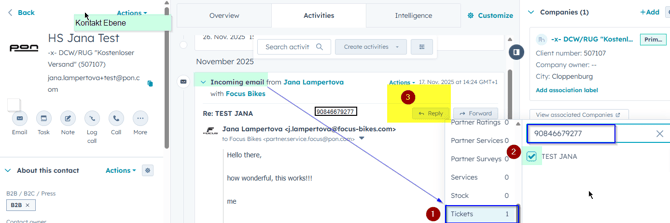
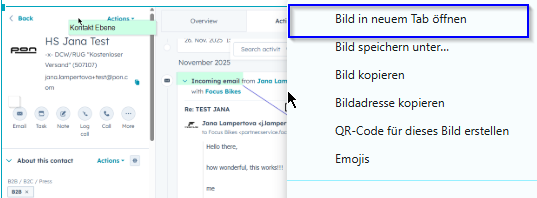
(If the image appears too small, right-click and select “Open image in new tab” for a clearer view.)
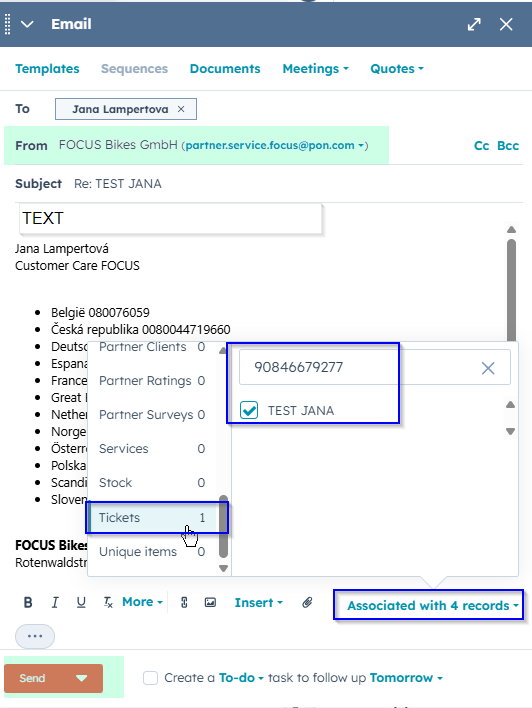
You can also check the associations before sending the email.
Advantages:
This links a help desk ticket to your email, and the original customer email appears as part of the email history in the history (indicated by the three dots in the email history).
You may think that this is the same as sending a normal email and then adding the associations. I assumed so too, but unfortunately it doesn't work that way. I am working on a solution.
Also, if you add the associations after sending the email, the email will not be displayed in the help desk, but only at the ticket level. Just for your information.
2. Alternative method (more complicated):
- Create a ticket.
- Paste the customer's email address into the “Ticket description” field.
- Create a new email via the help desk and reply.
Disadvantage: Unfortunately, the original customer email is not automatically displayed in your reply. This means that we need to add it manually if necessary.